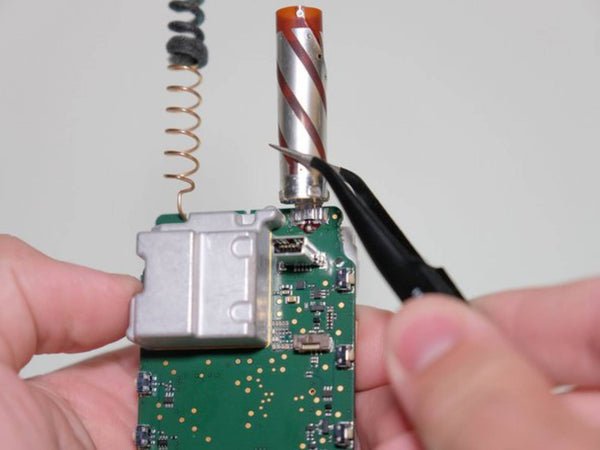
Quick answer: Sticky or weak keys on a Garmin Rino 700 are usually caused by dirt, salt residue or a worn rubber keypad. Cleaning fixes mild cases; if a key still needs a hard press or does nothing, replace the keypad or PTT button. If a new part doesn't help, the contact pads on the board may be worn.
Symptoms and Causes
| Symptom | Likely cause | Fix |
|---|---|---|
| Keys feel sticky | Dirt, sunscreen, salt, spilled drinks | Clean around and under keys |
| Needs a very hard press | Worn rubber dome or conductive pad | Replace keypad |
| One key dead, others fine | Worn contact on that key | Replace keypad, inspect board pad |
| Several keys dead | Moisture, corrosion or board fault | Dry and clean; then troubleshooting check |
| PTT doesn't transmit but other keys work | Worn PTT button, or a radio setting | See below and the radio and antenna guide |

The PTT Button
The push-to-talk (PTT) button is the key you use most on a Rino, so it wears first. Before blaming the button, confirm the radio side: correct channel, matching privacy code and a charged battery. If those are right and the unit never enters transmit mode when you press PTT, the button or its contact is the likely fault.
Test the Keys
Use the menus to test every key, including the directional keys, the menu and back keys, and the power key. Note exactly which keys fail, since the pattern points to the cause.
Quick Fix: Cleaning
- Power off and disconnect the USB cable.
- Use a soft brush or compressed air to clear debris around each key.
- Dampen a cotton swab with isopropyl alcohol (not dripping) and clean the key edges, working each key gently.
- Let the unit dry fully before charging or powering on.

Replacing the Keypad

- Open the case following a teardown for your unit, and disconnect the internal battery first.
- Photograph the keypad orientation, then lift out the rubber keypad and note how any seal sits around it.
- Clean the contact pads on the board with isopropyl alcohol and a lint-free swab.
- Inspect the pads. Clean shiny pads are good; dark, pitted pads indicate wear.
- Fit the replacement keypad and PTT button, aligning every key with its pad.
- Reconnect the battery, test all keys before closing, then reseal (see the gasket replacement guide).

If a New Part Doesn't Help
If keys stay dead after fitting a good keypad and cleaning the pads, the pads or traces on the circuit board are probably worn or damaged. Board-level repair needs electronics skills and may not be worth it.
Frequently Asked Questions
Why is the PTT button on my Rino 700 not working?
Check channel, privacy codes and battery first. If the unit still won't transmit when PTT is pressed, the button or its contact is likely worn.
Why are my Rino 700 buttons sticky?
Usually dirt, sunscreen or salt residue. Careful cleaning with isopropyl alcohol often helps.
What if replacing the keypad doesn't fix it?
The board contact pads may be worn or damaged, which is much harder to repair.
Unofficial repair information for educational purposes. Opening the unit may void warranty and affect water resistance. Garmin and Rino are trademarks of Garmin Ltd.; this site is not affiliated with Garmin. This guide covers the Rino 700, not the Rino 750, 750t or 755t, which have a different display and battery design.